
Using AudienceLift signals in Meta
Follow this guide to use Anonymised AudienceLift signals in Meta to build audiences.
AudienceLift signals appear in Meta as custom events. You can learn more about the differences between standard and custom events in Meta’s business help centre.

Ensure that you are receiving the custom events from Anonymised, this guide may help you with this if you are not.
Building a Meta Audience
In Meta’s Audience manager you will observe two audience options:
Create a Custom Audience
Create a Lookalike Audience
You may use the Anonymised AudienceLift signal for either.
Prerequisites
Make sure you are in the correct Ads account and have selected the correct Pixel if you have more than one of either.

Make sure you are in the correct Ads account and have selected the correct Pixel if you have more than one of either.
Create a Custom Audience
Click on Create a Custom Audience.
In the popup, under Your sources choose Website.
Click Next.
Under Source the correct Pixel should be already selected.
Under Events, choose either:
AudienceLiftEntry_nnnnn, or AudienceLiftExit_nnnnn. Where nnnnn is the Audience signal ID that appears in your Anonymised Audience Builder and you are using the core setup for Meta’s pixel.
AudienceLiftEntry or AudienceLiftExit where you are using the non-core setup for Meta’s pixel.
If using the core setup please skip to point 7. Else, you will need to refine the configuration by:
Click on Refine by and choose URL/Parameter.
Under URL or parameter, click on URL and choose Custom data.
Replace the parameter name custom_data with audience_signal.
Keep the contains option or choose equals.
Type the Audience signal ID (nnnnn) from the Anonymised Audience Builder.
Name the audience under Audience name.
Optionally describe the audience under Description.
Click on the Create audience button to save.
You will now observe options to:
Create a Lookalike Audience.
Create a campaign using this audience.
Create another custom audience.
Refer to Meta audience guidance for more information.
Core setup Audience configuration
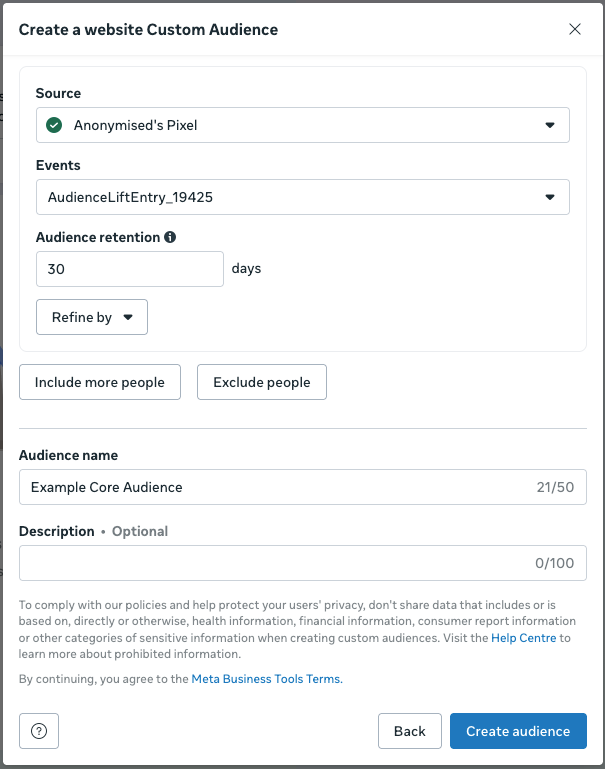
Core setup Audience configuration
Non-core setup Audience configuration
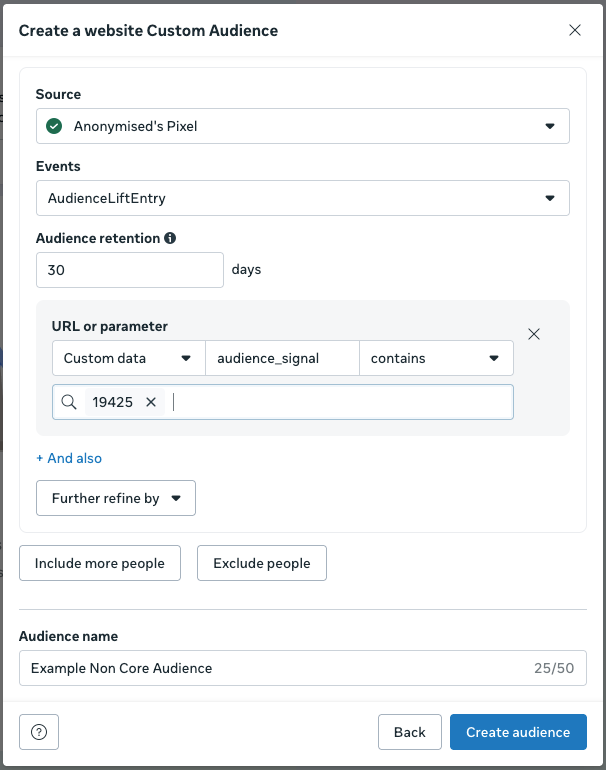
Non-core setup Audience configuration
Create a Lookalike Audience
Click on Create a Lookalike Audience.
Click into the field Select your lookalike source.
To use an existing audience:
Click on Other sources.
Choose the prebuilt audience (the list will show the audiences by name)
To create a new audience:
Click on Create new source.
Select Custom audience.
Follow the Create a Custom audience steps.
Select the audience as above.
Use Select audience location to select the regions or countries.
Set the number of Lookalike Audiences.
Click Create audience to save.
Refer to Meta audience guidance for more information.