
Setting up your Google Ad Manager for SignalLift
SignalLift comprises of the three first-party publisher signal types provided by Google: Publisher Provided Id (PPID), Publisher Provided Identity (PPID), Publisher Provided Signals (PPS), Secure Signals. These are enabled on GAM360 accounts only, although it is understood that PPID can be made available to GAM customers on request.

If you are unable to see these features within your Ad server regardless of the version, you should contact your account manager at Google.
As SignalLift is enabled via the Anonymised Tag there is very little setup required by a publisher. We recommend the following steps to check and ready your GAM account for activation.
Preparation and setup steps
Confirm you are using GAM360 and check for the PPID and PPS setups:
PPID
Navigate to Delivery > Demand channel settings and under Publisher data sharing check that you have options for Publisher-provider identifiers (PPID) for programmatic.
PPS
Same as for PPID and look for Publisher-provided signals: IAB audience taxonomy or navigate to Inventory > Publisher-provided signals.
Secure Signals
Navigate to Delivery > Demand channel settings and under Secure signals you should observe Secure signal sharing.Confirm you already have Anonymised integration with GAM. If you navigate to Inventory > Key-values, you should observe a key named Anonymised. If you do not see this key, please follow the GAM setup instructions.
Navigate to Delivery > Demand channel settings and under Publisher data sharing you will see which channels are configured for PPID and PPS. The channels will be: Authorised Buyers, Open Bidding, SDK Bidding, and Google demand. Report these to your client success manager or support.
Now setup the targeting keys for SignalLift reporting. Navigate to Inventory > Key-values and click on the New Key-value button.
Under Settings, type in the name AnonymisedSignalLift, the display name can be the same.
Under value type choose Predefined.
Under Report on values be sure to choose Include values in reporting & add key as custom dimension and if not possible choose Include values in reporting. This is an important setting and if you have any issues please report these to your client success manager or support.
Under Targeting values, click the button New values and enter the following numbers, one per line, 0, 1, 2, 3, 4, 5, 6, 7, 8. You can set a line return in the data entry field, as follows:
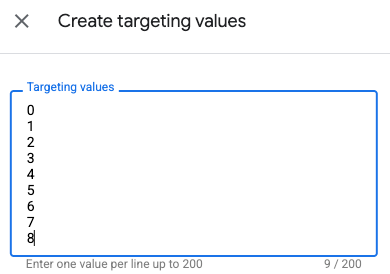
Bulk entry of AnonymisedSignalLift targeting key values
Click the Save button.
You may add the Display Name against each value by clicking the pencil icon on each row, as follows:
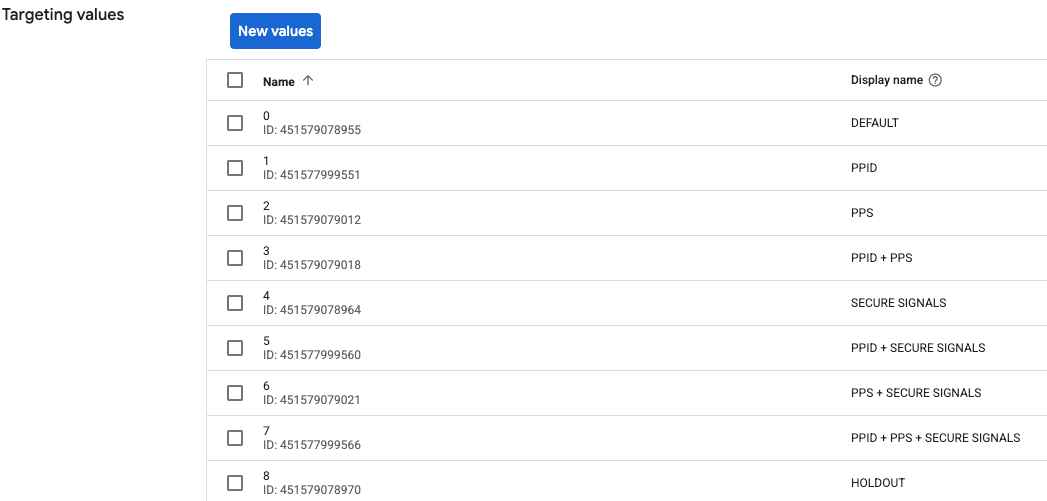
AnonymisedSignalLift targeting key values and names
Click the Save button.
If you wish to setup the reporting, please follow this article.